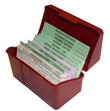
Never lose track of an auction again using my Auction Tracker Cards™! I have designed these cards for new and professional eBay® sellers alike. All you need is a 3x5 index card file box, a computer with the free Adobe Acrobat Reader® program, a laser printer, scissors, and an assortment of colored paper. This system is for tracking the progression of your completed auctions; everything from contacting the buyer to sending off the package. This is the system I have been using for years, and I’m ready to disclose to you my secret and provide to you the files necessary to be an efficient, knowledgeable and professional eBay® seller.
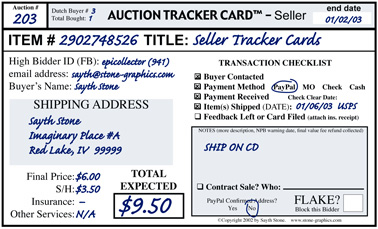
Auction #: Write in this section the number of this successfully sold auction. In this example, this card would be my 203rd auction ending with a bid. Not all auctions will be paid for, but that comes later in the card recording.
Item #: eBay assigns this number to your auction. Use it in all messages to eBay and to your buyers for quick reference to your questions or instructions.
Title: This is the title of your auction. Make sure bidders would not be confused by what you write as your title.
Dutch Auctions: If this is a multiple item auction, record each buyer as a separate card, but the Auction Number and Item Number remain the same. In this example, this was the 3rd buyer in auction 2902748526 and he bought 1 item.
end date: This is the date the auction ended. Your Auction Number is based off of this end date; meaning your Auction Tracker Cards™ are filled out in the same order that your auctions ended.
Buyer Information: As you collect information about your buyer, record it in the left side of the Auction Tracker Card™.
The User ID, feedback and email address of your buyer can be immediately recorded at the auction’s end. The shipping address will be provided by the buyer. Do not assume that the return address on a letter used to send payment, or the address on a check, is where the item is to be sent. Always confirm delivery address with the buyer if they do not specify it. If the payment was sent via PayPal®, mark if the address is confirmed or not. PayPal® will not protect you if items are not received at an unconfirmed address.
Payment Information: This is where you record how much you expect to receive for the auction and Shipping/Handling. You should leave the Insurance and Other Services blank until you know whether the buyer is using them or not.
After you know the total expected or actually received, note the amount in the TOTAL EXPECTED box.
Transaction Checklist: This is where you mark the progression of this auction. Put all Auction Tracker Cards™ in the AWAITING PAYMENT section of your file box. If the buyer has contacted you, or replied to an email you sent, check the first box. If the buyer indicated what type of payment they were going to send, check the second box and circle the method they stated. When the payment is received, check the third box and circle the payment method if not already done. File the card in the PAID – WAITING TO BOX section of your file box. When the item is shipped, check the fourth box and write in the date and service used for shipping. Attach the insurance receipt, if used, to the auction card. Leave feedback if desired. Place the card in the SHIPPED – WAITING TO FILE section of the file box, and file the auction with the other completed auctions whenever you have time.
Notes Box: Use this box (and the blank other side of the card) for recording anything else concerning the auction. That could include when Non-Paying Bidder warnings were issued, if a check bounced, if a fraud claim is filed (along with its number), a PayPal® transaction number, alternate contact information for the buyer, special payment arrangements, logs of email contact, etc.
Contract Sale: If you are selling this item for another person, mark this section for easy reference later. You could also note what percentage you are charging to sell the item. eBay has a Trading Assistant program where sellers can advertise their services to be a contract seller and be contacted directly by anyone (even non-members).
FLAKE?: If you are not going to get any money from this bidder, mark this box. If using these cards for tax information, do not use this card for income. You can block the buyer from bidding on future auctions if you choose to.
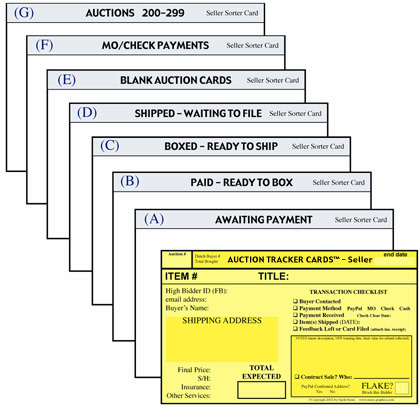
(A) AWAITING PAYMENT Take some blank Auction Tracker™ cards from the BLANK AUCTION CARDS section to fill out newly completed auctions. When you have received payment for an auction, check the Payment Received box, fill out the appropriate parts of the card and file it in the PAID – READY TO BOX section.
(B) PAID – READY TO BOX This is where auctions that have been paid for are placed. When you are ready to start boxing up auctions, take out these cards. When an auction is packaged, place the card in section (C) BOXED – READY TO SHIP.
(D) SHIPPED – WAITING TO FILE This is a section you can leave recent auctions until you are ready to file them away in the proper archive section.
(E) BLANK AUCTION CARDS Place your blank cards here. It is a good idea to put the Auction Number on the next card ready to be used for quick reference when the next batch of auctions end.
(F) MO/CHECK PAYMENTS Use this section to hold your payments until the information is recorded on the Auction Tracker Cards™. This is also the place to store incorrect payments until the replacement payment arrives.
©Copyright 2003-2008 by Sayth Stone. Auction Tracker Cards™ Trademarked by Sayth Stone.
Acrobat Reader® is a registered Trademark of Adobe Systems Incorporated®.
PayPal® and eBay® are registered Trademarks of eBay Inc.
(G) ARCHIVE AUCTIONS You will store your auctions every 100 cards using these dividers. After your current box fills up, transfer the older auctions to separate index card boxes for archiving.
THICKER DIVIDERS You should print these dividers on cover stock paper. It is a little thicker than regular paper, and holds up from the ruffling and sorting better.
COLOR CODED AUCTIONS You can print or photocopy these Auction Tracker Cards™ on colored paper. Change the color every month or 100 auctions to easily see a card’s age as it progress through the file box.
THE SELLER CARD EXPLAINED
(C) BOXED – READY TO SHIP When auctions are sent off, attach any insurance receipt and file in the correct archive section (G) or temporarily place it in section (D) for filing later.

Free counters provided by Andale.